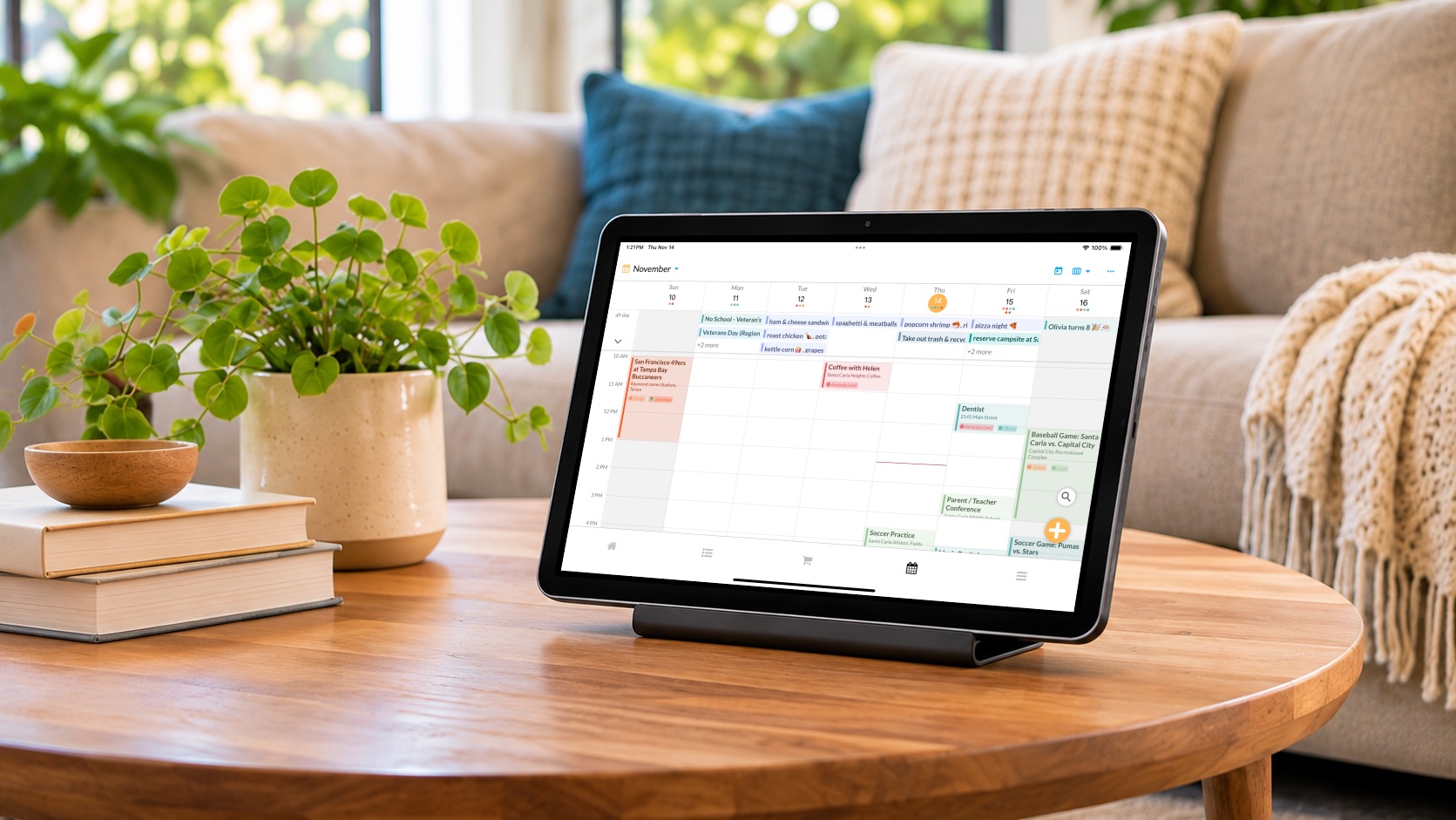
Turn the old iPad, Android tablet, or phone sitting in a drawer into an always-on family display. Your favorite photos, today's schedule, and the whole Kukini app, one tap away. No new hardware to buy. Free in every Kukini plan.
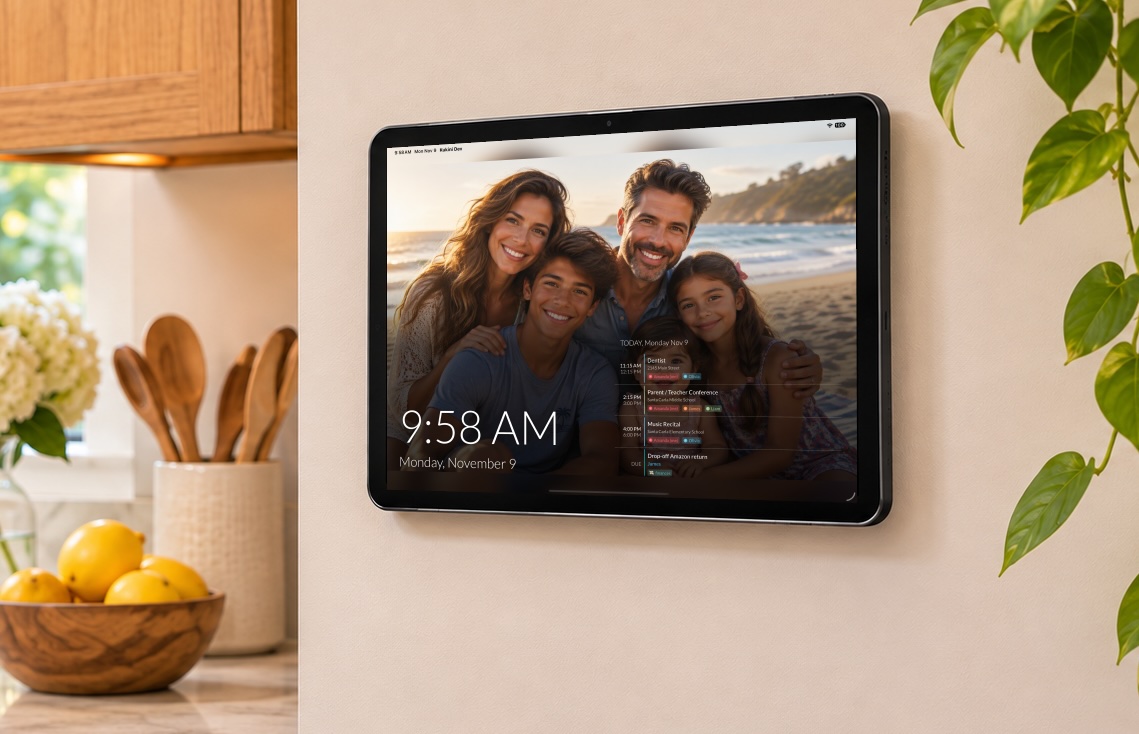
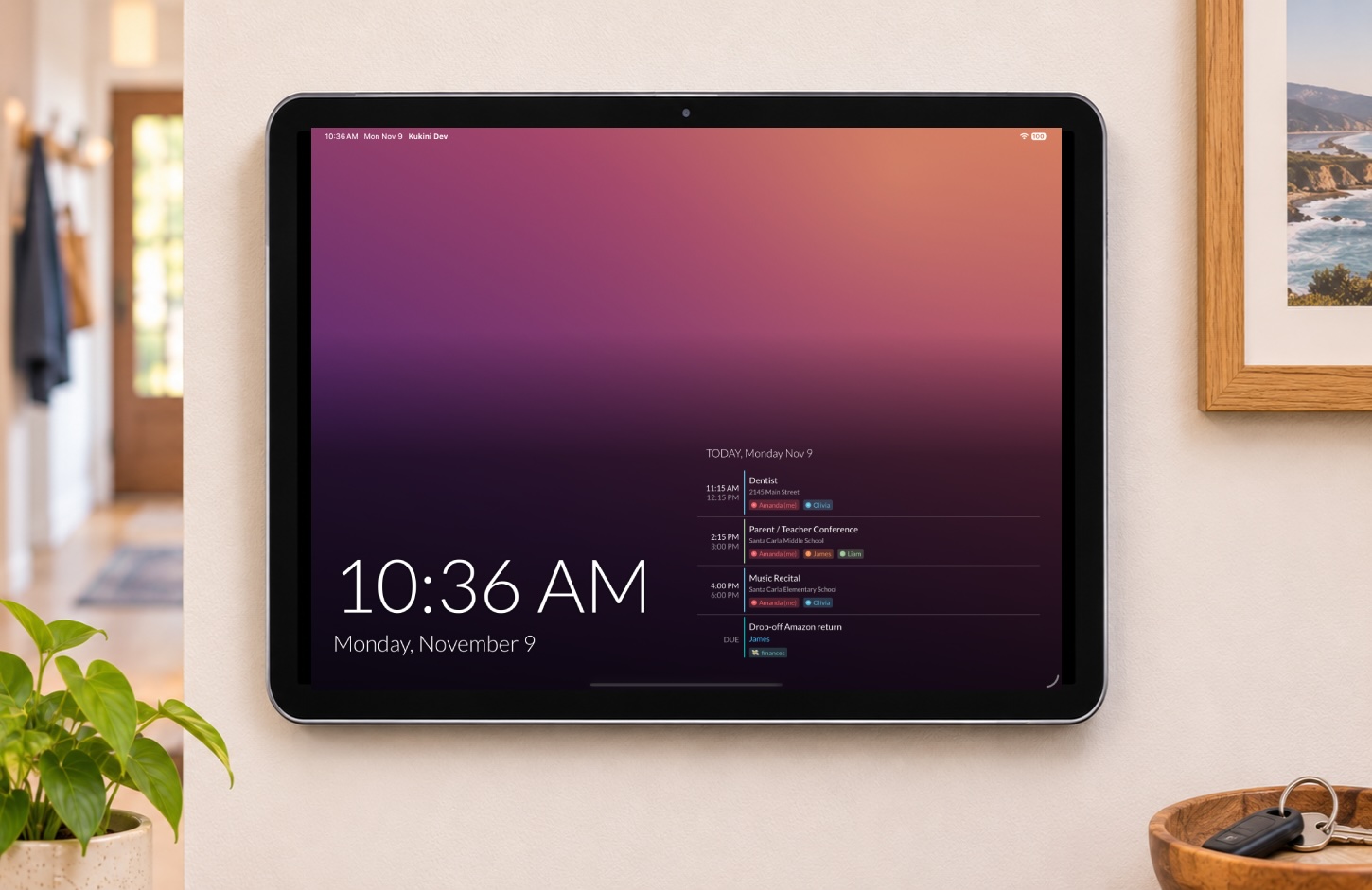
When nobody's using Kukini, Wall Display turns the screen into a living family display. Tap it, and the full app is right there.
A big, clear clock and date sit alongside your family's Today & Upcoming calendar, sized to fit whatever screen you use: side by side on a landscape iPad, stacked on a phone or portrait tablet. When someone adds soccer practice from their phone, it shows up on the display right away.
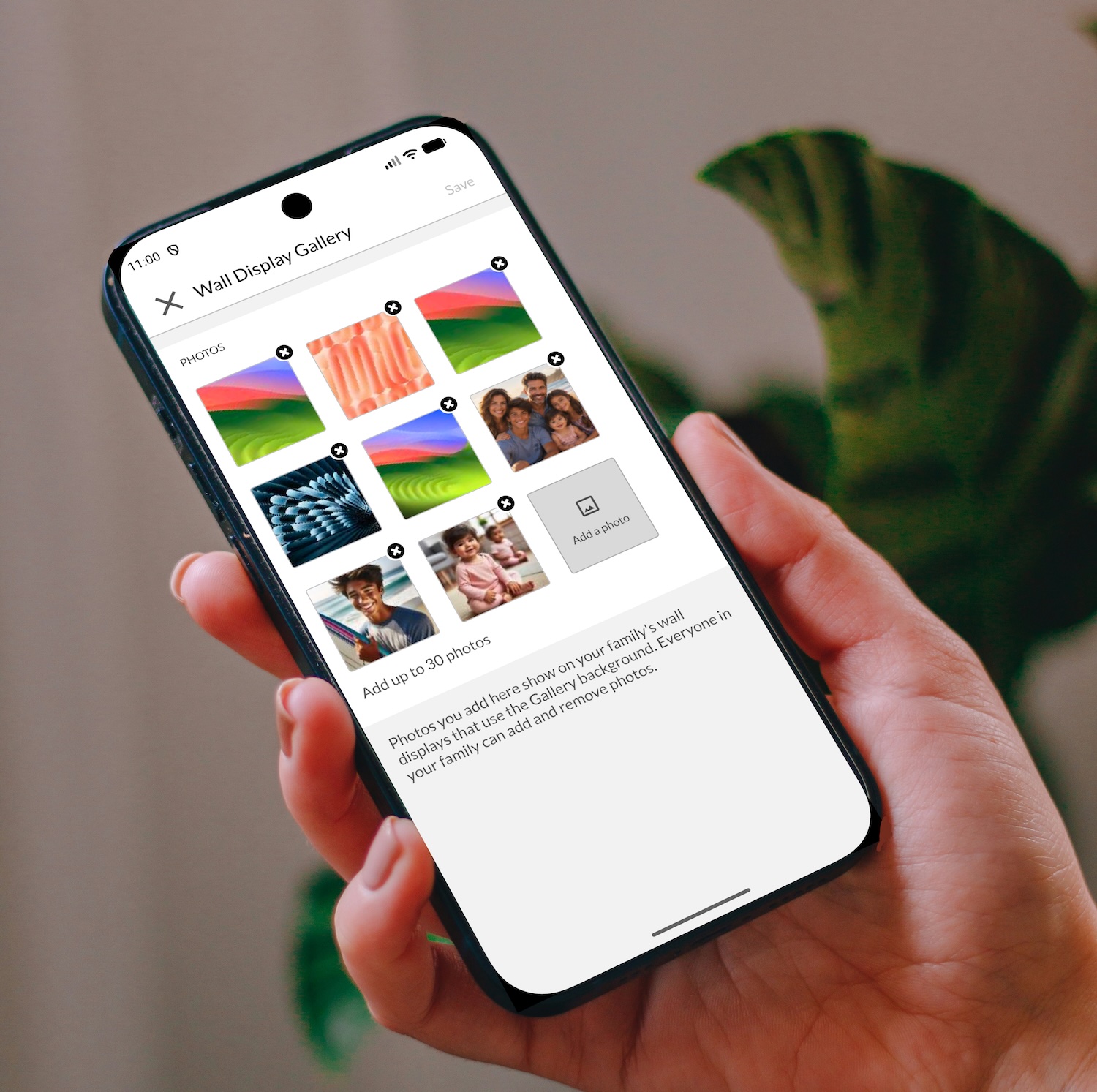
Build a shared photo album just for the display. Anyone in the family can add photos from their phone, tablet, or the Kukini web app, and they appear on every display in your home. Photos change every few minutes and are shown in full, never awkwardly cropped, over a soft, blurred backdrop.
Prefer something simpler? Pick one of three built-in backgrounds instead. Every plan includes one gallery photo, and Premium families can add up to 30.
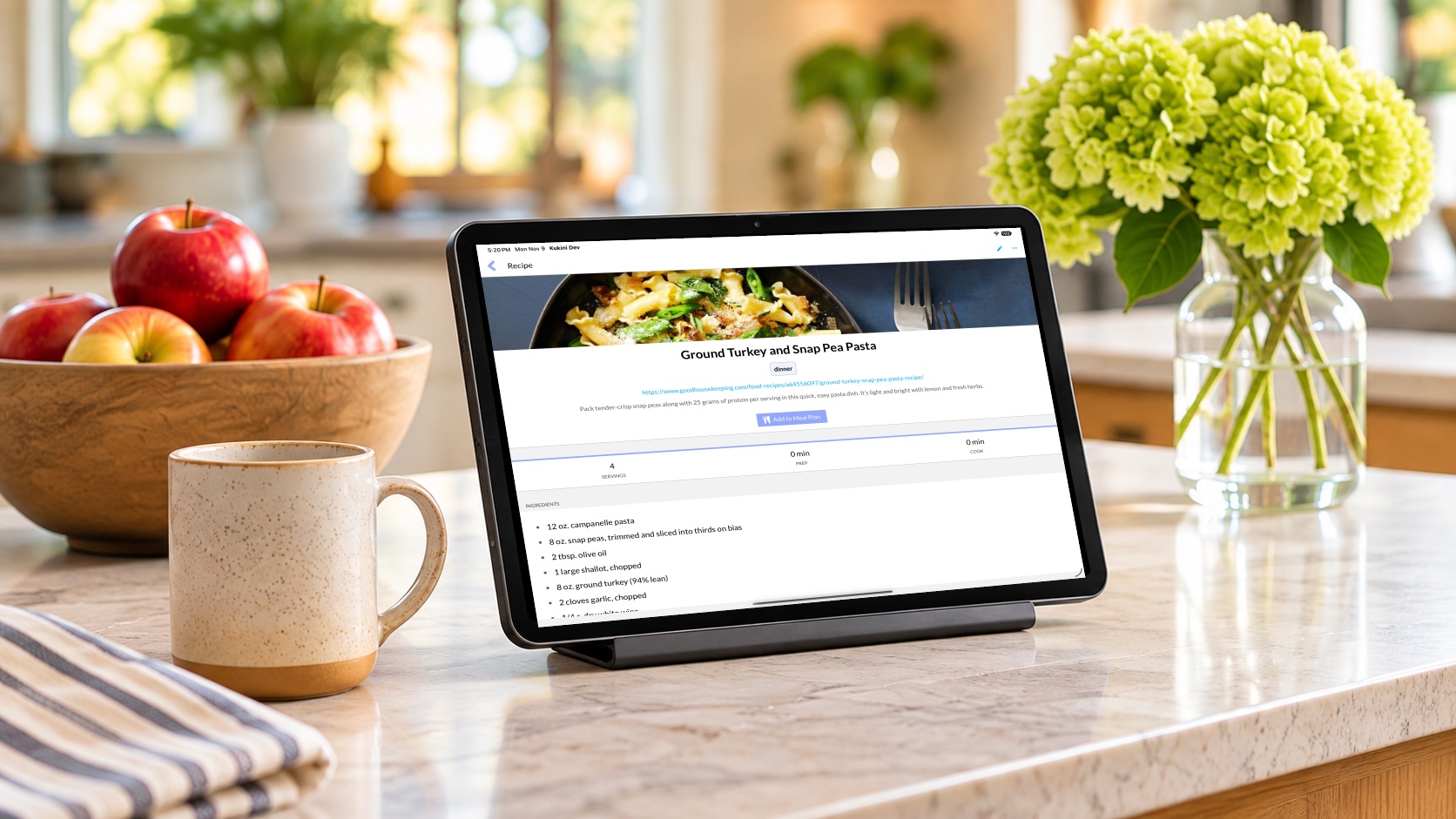
Tap anywhere to pick up right where you left off: check the shopping list, move an event, or see what's for dinner. The tap only wakes the screen, so nothing opens by accident. When you walk away, the screensaver comes back on its own after the delay you choose.
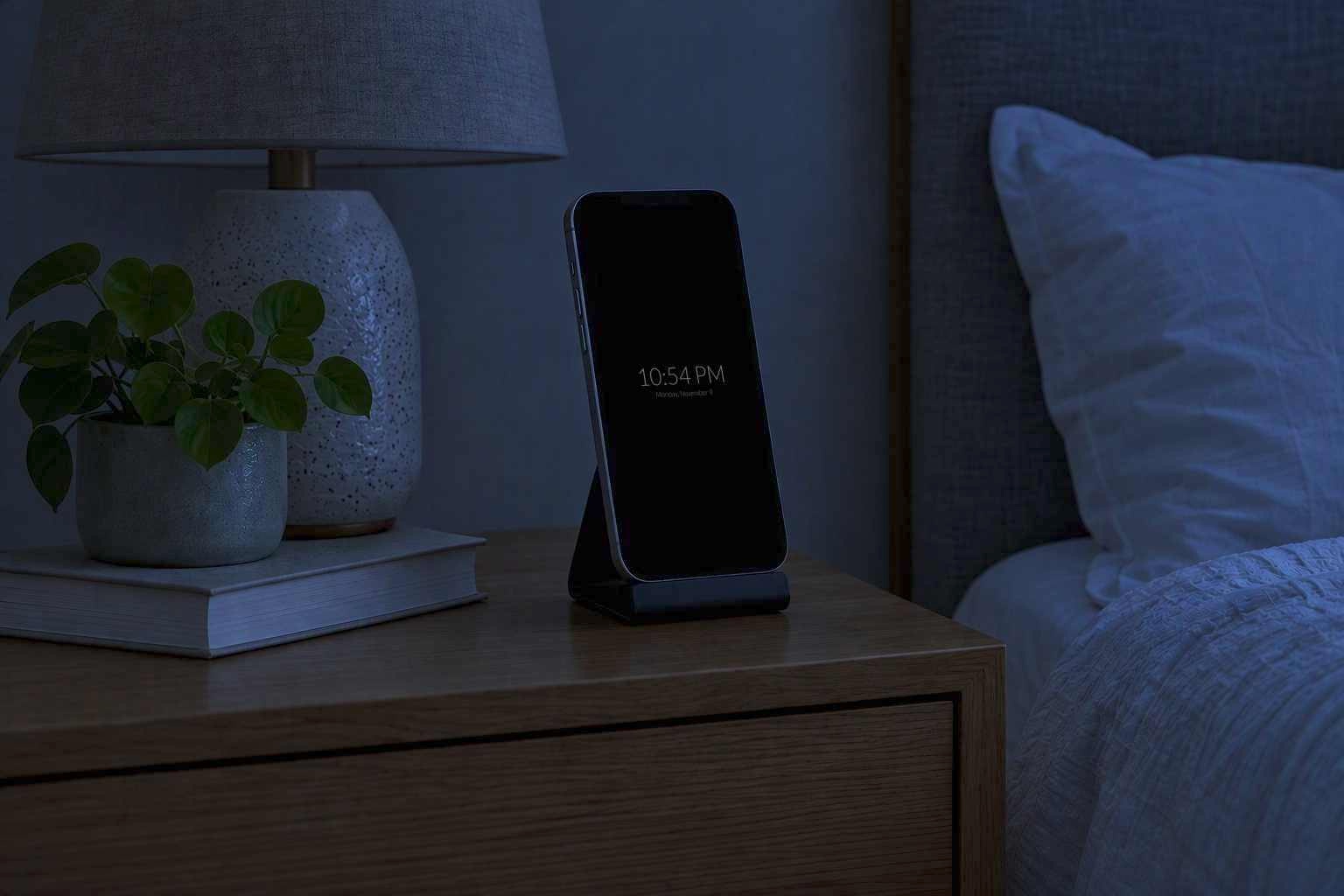
From 10pm to 6am, the photos and calendar step aside for a simple, dim gray clock on a black screen. It won't light up the kitchen after bedtime, and on a nightstand it makes a great bedside clock. Tap it anytime to bring everything back.
Wall Display keeps the screen awake while Kukini is open, and it's designed to look after that screen. The time and calendar drift slowly, by just a few pixels a minute. Nothing hard-edged stays in one place, photos rotate through the day, and the screen goes dark overnight. Together, that protects OLED screens from burn-in, and you'll never notice it moving.
Anywhere your family passes by. A simple stand or an adhesive wall mount is all you need.
A family photo frame that also knows everyone's schedule, right where everyone gathers.
A DIY home hub. Check tonight's dinner plan, add to the shopping list, then switch to music, podcasts, or a cooking video. Open Kukini again and it takes over as the display.
An old phone makes a great bedside clock. Quiet hours keep it dim overnight, and in the morning it shows the day ahead.
See who's going where before everyone heads out in the morning.
A few minutes, no extra hardware. You'll need the latest version of Kukini on the iPhone, iPad, or Android device you want to use, signed in to your family's account.
It's been through our testing on iPhone, iPad, and Android, but you may run into rough edges, and we'd love to hear how it works in your home.
Since it's free in every plan, it's easy to try. Let us know how it goes at support@kukiniapp.com: which device you're using, how long it's been running, and anything that didn't work as expected.
Want to see it first? Tap Preview Screensaver. Wall Display mode only applies to this device, so your other devices aren't affected.
Anyone in the family can do this from their own phone, tablet, or the Kukini web app.
Displays show the gallery by default. To use a built-in background instead, go to Settings › Wall Display Mode on the display and change Background. Every plan includes one gallery photo, and Premium allows up to 30.
A wall display is usually plugged in all day. To help the battery last:
You don't need this step: Wall Display keeps Kukini on screen by itself. Guided Access stops anyone, like a curious toddler, from closing Kukini by accident. Skip it if you also want to use the device for other apps.
Tip: before tapping Start, tap Session Settings (Options on older versions) and turn off the side or top button, so a stray press can't put the display to sleep.
To leave Guided Access, triple-click the same button and enter your passcode, then tap End.
Want to see it first? Tap Preview Screensaver. Wall Display mode only applies to this device, so your other devices aren't affected.
Anyone in the family can do this from their own phone, tablet, or the Kukini web app.
Displays show the gallery by default. To use a built-in background instead, go to Settings › Wall Display Mode on the display and change Background. Every plan includes one gallery photo, and Premium allows up to 30.
A wall display is usually plugged in all day. To help the battery last:
You don't need this step: Wall Display keeps Kukini on screen by itself. App Pinning stops anyone, like a curious toddler, from closing Kukini by accident. Skip it if you also want to use the device for other apps.
To unpin, swipe up and hold (gesture navigation), or touch and hold Back and Overview (button navigation). Menu names and gestures vary by manufacturer.
Apps don't update automatically while they stay open on the screen. When a new version is out, the screensaver shows Update Available. To update:
Your Wall Display settings are kept when you update.
More questions? Contact us at support@kukiniapp.com